Skip to content
Install guide · HP Tuners

Flash your tune
from your phone.

Polaris supercharger kits with the Preload plan come home on the stock tune. Once the kit is on, you write the Packard supercharger tune yourself with the HP Tuners RTD and the TDN app. Here’s the setup, the read, the write and the fixes for what goes wrong.

0 of 0 steps done
10Steps, each with its own check-off
3Parts: set up, read, write
6Fixes for the common problems
Writing the Packard tune in the TDN app

Watch it

Mason walks through it.

From the Packard Xpedition install video. Tap a chapter to jump.

Chapters

Before you start

What you’ll need.

Hardware

  • An HP Tuners RTD and its comms cable (in Complete kits, or added to the order)
  • Your instructions sheet with the invite code
  • The supercharger kit installed

Phone

  • The TDN app, updated
  • Bluetooth on
  • Wi-Fi or full bars. Weak data is the most common reason a read or write fails.

Preload or Flash now?

  • Preload: stock tune active, supercharger tune waiting. You need this guide.
  • Flash now: written at the shop. You can skip to riding.
  • Base kits without an RTD are always Flash now.

Set up, read, write

10 steps.

Check each one off as you go; this page remembers where you are on this device.

01

Set up

Once per phone and device.

Step 01· Done

Make sure your ECU is unlocked

Nothing below works until your ECU has been unlocked through HP Tuners. That happens when you send it in, and you get an email with the information you need.

If you picked Flash now, the supercharger tune is already written and you don’t need this guide to ride. Keep it for data logs and diagnostics.

Needsunlocked ECU · HP Tuners RTD
Step 02· Done

Install the TDN app and make an account

Install HP Tuners’ TDN app on your phone and create your account with your email and details.

Step 04· Done

Plug in the comms cable and the RTD

Plug the comms cable into the purple adapter under the dash, then plug the RTD into the cable. Wait for the green status light.

Step 05· Done

Pair the RTD with your phone

  1. In the app, open Settings (top left) and choose Set up RTD Gen 3.
  2. Follow the prompts until the RTD shows the green light, ready.
  3. Hold the RTD’s Bluetooth button until it flashes blue.
  4. The app finds it and connects. Tap Activate, then Finish.
Step 06 · From the kit sheet· Done

Sync your credits

Your instructions sheet has you sync the device’s credits: Tools, then Sync RTD+ Credits. The first flash on a vehicle needs them.

02

Read

Step 07· Done

Read the vehicle

Turn the key to accessory, so the dash and screen come on with the engine off. Tap Read/Write at the bottom right, then Read Vehicle. Let it run, and wait for the confirmation that the read file went through.

Step 08· Done

Sync the file to Packard

After the read you’ll see Unknown vehicle with your bin number. Tap Sync Files; that’s what sends your read to us. We send your tune back to the app.

Tune not showing up after you sync? Tell us your file is synced with your order number.

03

Write

Step 09· Done

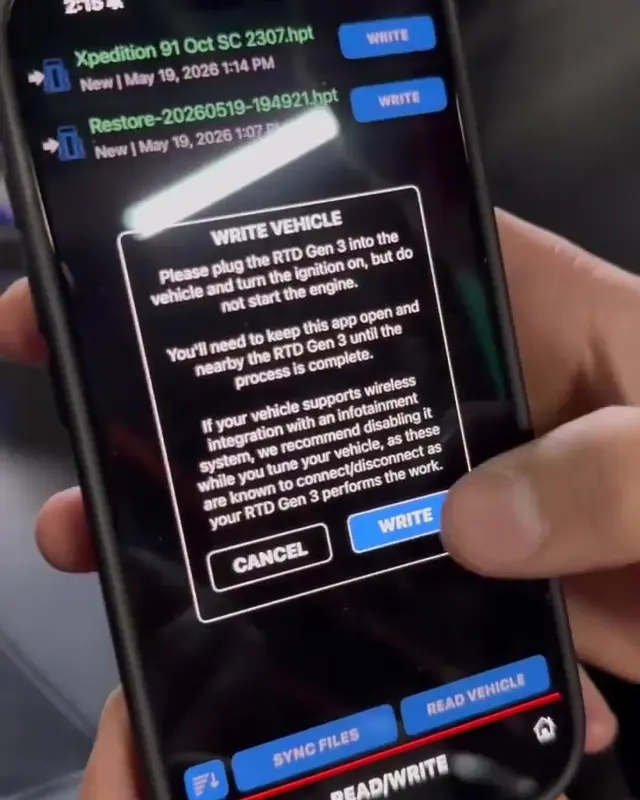
Write the Packard tune

  1. Tap the vehicle. Your tune is listed by name: an Xpedition shows something like Xpedition 91 Octane Supercharger, a Pro R shows your horsepower and fuel.
  2. Tap the tune (on some app versions, press and hold it) and choose Write.
  3. Key on, engine off, and let it run until you get the confirmation.

While it writes, don’t start the engine, turn the key off or unplug anything. Keep your phone next to the RTD and on a solid connection, and start with a charged machine battery and a charged phone.

Step 10· Done

Start it

Once the app says it’s complete, you’re on the supercharger tune. Start it up.

If it won’t flash

The six fixes.

What the shop sees most, and what solves it.

Firmware

Won’t read or can’t write

Open Settings, then Firmware Tools, and update both the RTD Gen 3 firmware and the Gen 3 Bluetooth firmware (on a Gen 4, update those). That solves most read and write failures.

Comms cable

An error about the comms cable

Unplug the comms cable, turn the machine off, and let the RTD and the machine sit for about five minutes. Plug back in and try again.

The app

Screens look wrong or red

An old copy of the app is a common cause. Check the App Store or Google Play for a TDN update.

Internet

Slow, stuck or failed

Three bars of data usually isn’t enough. Use Wi-Fi or full-strength data; at camp, Starlink or any Wi-Fi you can get on.

Data log

Flashed, but it doesn’t feel right

Key to accessory, then follow Data Logging in the app. It uploads a log to us so we can check the MAP sensor, injectors and tune are all reading in spec, and tell you what’s going on.

Check engine

A light on the dash

The Diagnostics tab at the bottom of the app reads the codes and tells you what they are.

Settings → Firmware Tools
Read/Write, Data Log and Diagnostics

Questions

Questions about flashing.

Which kits use this?

Polaris supercharger kits that include the tune on the Preload plan, Pro R and Xpedition. Complete kits include the HP Tuners RTD; a Base kit needs one added to the order to Preload.

Do I need this if I picked Flash now?

Not to ride. The shop already wrote the supercharger tune. The RTD and app are still handy for data logs and reading codes.

Where’s the invite code?

On the instructions sheet that comes with your kit. If you can’t find it, ask the shop.

Can I write the tune before the kit is on?

Don’t. The supercharger tune won’t run right without the supercharger. Install first, then write.

What if the write gets interrupted?

Don’t start it, and contact the shop before you do anything else. Tell us what the app showed when it stopped.

Still stuck?

Send us your order number, your vehicle and what the app says. The shop answers by email.

Ask about your install